A few months ago, I was sitting somewhere with a surprisingly weak mobile data connection. Web pages were taking forever to load, YouTube kept dropping the video quality, and even sending a few photos on WhatsApp felt like a chore.
The funny part? My phone supported 5G.
After checking the network settings, I discovered that the phone had automatically switched to a preferred network mode that wasn’t giving me the best connection in that particular area. I changed the network mode, tested the connection again, and the difference was noticeable.
That experience reminded me of something many Android users overlook: your phone’s network mode can affect how it connects to the mobile network.
However, there is an important catch. Selecting 5G does not magically make every connection faster. Your carrier, SIM, coverage, signal strength, congestion, and phone all matter.
If you’re trying to get the best possible 4G or 5G performance from your Android phone in 2026, here are the settings and tricks worth trying.
4G vs 5G: Which One Should You Use?
Before changing anything, it’s useful to understand the basic difference.
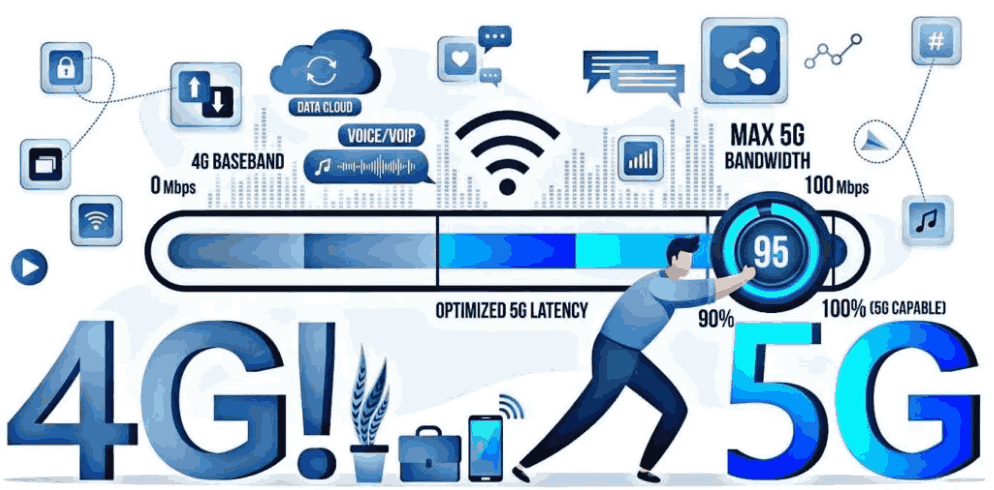
4G LTE is still extremely capable. For browsing, social media, video calls, streaming, online gaming, and downloads, a strong 4G connection can feel faster and more reliable than a weak 5G connection.
5G can provide higher speeds and lower latency where your carrier has good coverage. But if you’re in an area where 5G is weak or inconsistent, your phone may constantly jump between 5G and 4G.
That switching can sometimes make the connection feel worse rather than better.
My general rule is simple:
- Strong 5G coverage → use 5G.
- Weak or unstable 5G → try 4G/LTE.
- Strong 4G with poor 5G → stick with 4G.
- Moving between areas frequently → leave the phone on its recommended automatic mode.
The fastest icon isn’t always the fastest real-world connection.
How to Set 5G on an Android Phone
The exact menu names vary between Samsung, Xiaomi, Redmi, POCO, OnePlus, Vivo, OPPO, Realme, Motorola, and other Android phones.
But the process is usually similar.
Step 1: Open Settings
Unlock your Android phone and open Settings.
You can also pull down the notification panel and tap the gear icon.
Step 2: Open Mobile Network Settings
Look for an option such as:
- Mobile Network
- SIM & Mobile Network
- Connections
- Network & Internet
- Cellular Network
- SIM Manager
The wording depends on your phone manufacturer and Android version.
Step 3: Select Your SIM
If your phone has two SIM cards, select the SIM you’re using for mobile data.
This is an easy step to miss.
I’ve seen phones where one SIM was selected for calls while the other was configured for mobile data. Changing the network mode on the wrong SIM obviously didn’t help.
Step 4: Find Preferred Network Type
Look for Preferred network type, Network mode, or something similar.
You may see options such as:
- 5G/4G/3G/2G
- 5G/LTE/3G/2G
- LTE/3G/2G
- 4G/3G/2G
If you have reliable 5G coverage, select the option that includes 5G.
For example, on some Samsung phones, you may find a setting similar to:
Settings → Connections → Mobile networks → Network mode
Then choose the available 5G-compatible option.
Don’t worry if your phone’s menu looks different. Manufacturers customize Android heavily.
How to Switch Back to 4G LTE
Sometimes 4G is actually the better choice.
I learned this while testing mobile data in areas where the 5G signal was technically available but extremely inconsistent. The phone would show 5G, switch to LTE, return to 5G, and repeat the process.
For basic browsing, that behavior was more annoying than helpful.
To try 4G:
- Open Settings.
- Go to Mobile Network or Connections.
- Select your mobile SIM.
- Open Preferred Network Type or Network Mode.
- Choose LTE/4G if your phone provides that option.
- Wait a few seconds for the network to reconnect.
Then test the connection again.
Don’t judge the result only by the network icon. Open a few websites, play a video, download a file, or run a speed test.
Use Airplane Mode to Refresh the Connection
This is one of the simplest tricks I’ve used when mobile data suddenly becomes sluggish.
Turn on Airplane mode, wait around 10–15 seconds, and turn it off again.
Your phone will reconnect to the cellular network.
This can be useful after moving between locations, especially when the phone seems stuck on a poor network connection.
It isn’t a secret speed booster. It simply forces the phone to establish a fresh connection.
Restart Your Phone
It sounds almost too basic, but restarting can fix temporary network problems.
If mobile data suddenly becomes unusually slow, I normally try:
Airplane mode → wait → turn it off → test again.
If that doesn’t help, I restart the phone.
A restart can clear temporary software glitches and force the cellular connection to initialize again.
Check Your SIM Card
Don’t immediately blame the phone.
The SIM card and carrier account also matter.
If your SIM is very old, damaged, improperly provisioned, or not compatible with the network services you’re trying to use, changing Android settings won’t solve the problem.
If you’ve recently upgraded from 4G to 5G service, check whether your carrier requires a compatible SIM, plan, or account configuration.
Some carriers handle this automatically, while others may require additional activation.
Make Sure Your Phone Actually Supports 5G
This sounds obvious, but it’s surprisingly easy to overlook when buying or using an older Android phone.
Open your phone’s specifications or manufacturer’s support page and check whether the exact model supports the 5G bands used by your carrier.
A phone can be advertised as a 5G device but still have compatibility limitations depending on the region and model variant.
This is especially important with imported phones.
Two phones with almost identical names can have different regional hardware.
Don’t Trust Every “Internet Booster” App
One mistake I made early on was experimenting with apps that claimed to dramatically increase mobile internet speed.
Most of them couldn’t overcome the actual limitations of the cellular network.
An app can’t create better tower coverage or magically increase the bandwidth your carrier provides.
Some apps simply provide shortcuts to Android settings or change DNS configurations. That can be useful in certain situations, but it shouldn’t be confused with increasing your cellular signal.
For basic troubleshooting, I prefer using Android’s built-in settings rather than installing random “4G/5G booster” applications.
Test Your Speed Properly
If you’re changing network settings, test the results rather than relying on your impression.
A speed-testing service such as Speedtest by Ookla can help you compare download speed, upload speed, and latency.
For a useful comparison, test the same location under similar conditions.
For example:
Test 1: 5G
Test 2: 4G LTE
Stand in the same place and run the tests a couple of times.
Don’t compare a 5G test from your bedroom with a 4G test from outside and assume the network mode caused the difference.
Mobile networks fluctuate constantly.
Why 5G Can Sometimes Feel Slower
This was probably the most unexpected thing I noticed when using 5G.
Seeing the 5G symbol doesn’t guarantee an excellent connection.
A 5G network can be affected by:
- Distance from the cell tower
- Indoor walls and building materials
- Network congestion
- Local coverage
- Carrier infrastructure
- Supported frequency bands
- Your phone’s modem
- Weather and environmental conditions in some circumstances
Meanwhile, a strong LTE connection can be remarkably stable.
That’s why I wouldn’t recommend forcing 5G permanently just because it sounds faster.
Try Moving a Few Feet
When the signal is weak indoors, your physical position can make a surprising difference.
If mobile data is struggling, try moving:
- Near a window
- Away from thick concrete walls
- To a higher floor
- Outside temporarily
You don’t necessarily need to walk around searching for the perfect signal.
Sometimes moving just a short distance is enough to improve reception.
Turn Off Unnecessary Background Data
Your connection might not actually be slow.
Another app could simply be using your bandwidth.
Cloud photo backups, app updates, social media uploads, and large downloads can consume mobile data in the background.
Check:
Settings → Apps → Mobile data
The exact location varies by Android version.
Look for apps using unusually large amounts of mobile data.
If necessary, restrict background data for apps that don’t need constant access.
This is particularly useful if webpages load slowly while another app is uploading or downloading something.
Keep Your Phone Updated
Android updates and manufacturer software updates can sometimes include modem, connectivity, and stability improvements.
Go to:
Settings → Software Update
and check whether an update is available.
Don’t expect every update to make your internet faster, though. Updates aren’t magic speed upgrades. They’re simply another part of keeping the phone’s software current.
Common Mistakes to Avoid
Forcing 5G Everywhere
If 5G coverage is poor, forcing it can make the experience worse.
Try automatic 5G/4G selection first.
Changing Random Hidden Settings
You may find guides online recommending secret dialer codes or engineering-menu changes.
I wouldn’t experiment with those unless you know exactly what a setting does.
Changing radio or carrier parameters incorrectly can cause connectivity problems.
Installing Multiple Booster Apps
More apps don’t mean more speed.
In fact, unnecessary optimization and booster apps can create additional background activity.
Judging Speed by the 5G Icon
The icon only tells you the network technology your phone is connected to. It doesn’t tell you exactly how fast your internet connection is at that moment.
Forgetting Dual-SIM Settings
If you have two SIMs, make sure you’re changing the settings for the SIM that actually provides your mobile data.
What If 4G and 5G Are Both Slow?
If neither network mode performs well, the problem may not be your Android settings.
Try these checks:
- Restart the phone.
- Toggle Airplane mode.
- Check your remaining mobile data.
- Test the SIM in another compatible phone if possible.
- Check whether other people using the same carrier are experiencing the problem.
- Move to a different location.
- Contact your carrier if the problem continues.
If another phone using the same network has the same problem in the same location, that points more toward coverage or network congestion than your Android settings.
A Simple Setup I Recommend
If you don’t want to constantly change settings, keep things simple.
Start with your phone’s automatic 5G/4G preferred network mode.
Use 5G when the coverage is good.
If you notice unstable performance in a particular area, temporarily switch to LTE/4G and compare.
Then use a speed test to see which option actually performs better.
That’s much more reliable than assuming 5G must always win.
Final Thoughts
Getting faster mobile internet on Android isn’t usually about finding one magical setting.
The biggest improvement often comes from using the right network mode for your location.
If your phone has strong 5G coverage, enable 5G and take advantage of it. If 5G is weak or constantly switching, 4G LTE may provide a smoother experience.
And if changing between 4G and 5G doesn’t make any meaningful difference, don’t keep hunting through obscure settings. The limitation may simply be your carrier’s coverage, network congestion, SIM configuration, or the phone’s hardware.
The best setting is ultimately the one that gives you the most stable connection where you actually use your phone.